How To Install Homestead
This guide will walk you through installing the Homestead modpack on your preferred launcher.
Prism Launcher
Prism Launcher is a free, open-source Minecraft launcher that makes managing modpacks easy.
Installing Prism Launcher
If you don't have Prism Launcher yet, download it from prismlauncher.org.
Installing Homestead
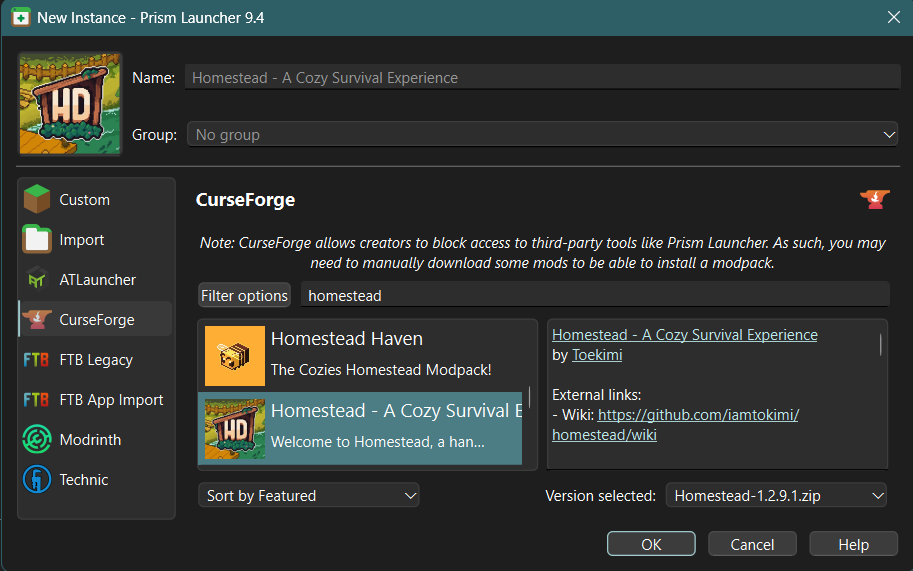
- Open Prism Launcher
- Click Add Instance in the top left
- Select CurseForge from the left sidebar
- Search for "Homestead"
- Select Homestead from the search results
- Choose the version you want to install (latest is recommended)
- Click OK to download and install the modpack
- Once installed, make sure your allocated RAM is set correctly (see System Requirements below)
Updating Homestead
- Right-click on your Homestead instance
- Click Edit...
- Go to the CurseForge tab
- Click Update Pack if an update is available
Modrinth App
The Modrinth App is the official launcher from Modrinth, designed for easy modpack installation.
Installing Modrinth App
If you don't have the Modrinth App yet, download it from modrinth.com/app.
Installing Homestead
- Open the Modrinth App
- Click the Browse tab
- Search for "Homestead"
- Click on Homestead in the search results
- Click the Install button
- Wait for the modpack to download
- Once installed, make sure your allocated RAM is set correctly (see System Requirements below)
Updating Homestead
- Select your Homestead instance
- Click the gear icon (Settings)
- Go to Installation
- Click Change Version
- Click the green button on the topmost version to update
Important: Make sure to click the green button and not the version text - clicking the text will create a new instance instead of updating your current one!
CurseForge App
The CurseForge App is a popular launcher for downloading and managing modpacks.
Installing CurseForge App
If you don't have the CurseForge App yet, download it from curseforge.com/download/app.
Installing Homestead
- Open the CurseForge App
- Select Minecraft from the games list
- Click Browse Modpacks
- Search for "Homestead"
- Click on Homestead in the search results
- Click the Install button
- Wait for the modpack to download
- Once installed, make sure your allocated RAM is set correctly (see System Requirements below)
Updating Homestead
- Open the CurseForge App
- Go to My Modpacks
- If an update is available, you'll see an update icon on the Homestead modpack
- Click the update button to download the latest version
System Requirements
Homestead is a large modpack. Here are the recommended specs for the best experience:
| Component | Minimum | Recommended |
|---|---|---|
| RAM (allocated to Minecraft) | 6 GB | 8 GB |
Allocating More RAM
If you experience lag or slow loading times, try allocating more RAM to Minecraft:
Prism Launcher:
- Right-click instance > Edit... > Settings > Java > Set Maximum memory allocation

Modrinth App:
- Click the Settings cogwheel > Go to Default instance options > Adjust the Memory slider

CurseForge:
- Click Settings (gear icon) > Minecraft > Java Settings > Adjust Allocated Memory

Troubleshooting
Game crashes on startup
- Make sure you have enough RAM allocated (at least 6 GB)
- Ensure you're using Java 17
- Check that your graphics drivers are up to date
Slow loading times
- Allocate more RAM if possible
- Be patient on first launch - the game needs to load many mods
Need more help?
- Check the How To Send Logs with mclo.gs guide to share your logs for support
- Join our Discord community for help
Need more help? Join our Discord community for support!