Accessibility Options
This guide covers various ways to customize your Homestead experience, including adjusting sounds, removing the custom GUI, and adding controller support.
Disabling Sounds with Extreme Sound Muffler
If certain sounds are bothering you (the cicadas are a common one!), you can use the Extreme Sound Muffler mod to turn them down or off completely.
How to Mute Sounds
- Open your inventory
- Look for the muted speaker icon button (it looks like a speaker with a line through it)
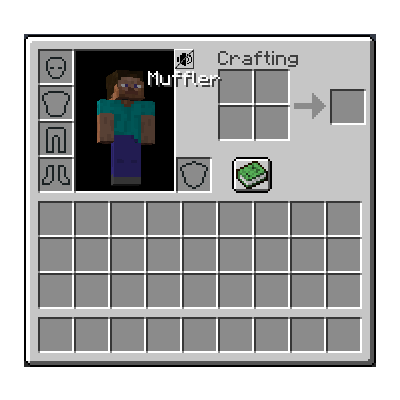
- Click it to open the Extreme Sound Muffler interface
- Find the sound you want to mute in the list
- Adjust the volume slider or mute it entirely
Muting Cicadas
The cicada sounds are made up of multiple sound events. To fully mute them, you'll need to turn down all of the cicada-related sounds in the list - there are several of them!
Tip: Search for "cicada" in the sound list to find all related sounds quickly.
Removing the Homestead GUI
Homestead includes a custom GUI resource pack that changes the look of menus and interfaces. If you prefer the vanilla Minecraft GUI, you can easily disable it.
How to Disable the Custom GUI
- Open Options from the main menu or pause menu
- Click Resource Packs
- Find Homestead GUI in the list of active resource packs (right side)
- Click on it to move it to the available packs (left side)
- Click Done
How to Enable the Custom GUI
If you previously disabled it and want it back:
- Open Options > Resource Packs
- Find Homestead GUI in the available packs (left side)
- Click on it to move it to the active packs (right side)
- Click Done
Enabling Controller Support
Homestead does not include controller support by default. This is intentional - controller mods can cause game crashes and world corruption for players who don't have controllers connected.
If you want to play with a controller, you can manually add the Controlify mod.
Installing Controlify
- Download Controlify from Modrinth or CurseForge
- Important: Download the version for 1.20.1 Fabric (this is what Homestead runs on)
- Make sure to get the latest version available for 1.20.1
- Locate your Homestead instance's
modsfolder - Place the downloaded
.jarfile into themodsfolder - Launch the game
Finding Your Mods Folder
Prism Launcher:
- Right-click your instance > Folder > Mods Folder
Modrinth App:
- Click on your instance > Three dots (...) next to the settings cogwheel > Open Folder > Navigate to
mods
CurseForge:
- Click on your modpack > Three dots (...) > Open Folder > Navigate to
mods
Configuring Controlify
Once installed, connect your controller and launch the game. Controlify should automatically detect your controller and provide configuration options in the settings menu.
Need more help? Join our Discord community for support!